Driver Lab™
Home › Drivers › Logitech › audio › Logitech - MEDIA - 10/22/2012 12:00:00 AM - 13.80.853.0
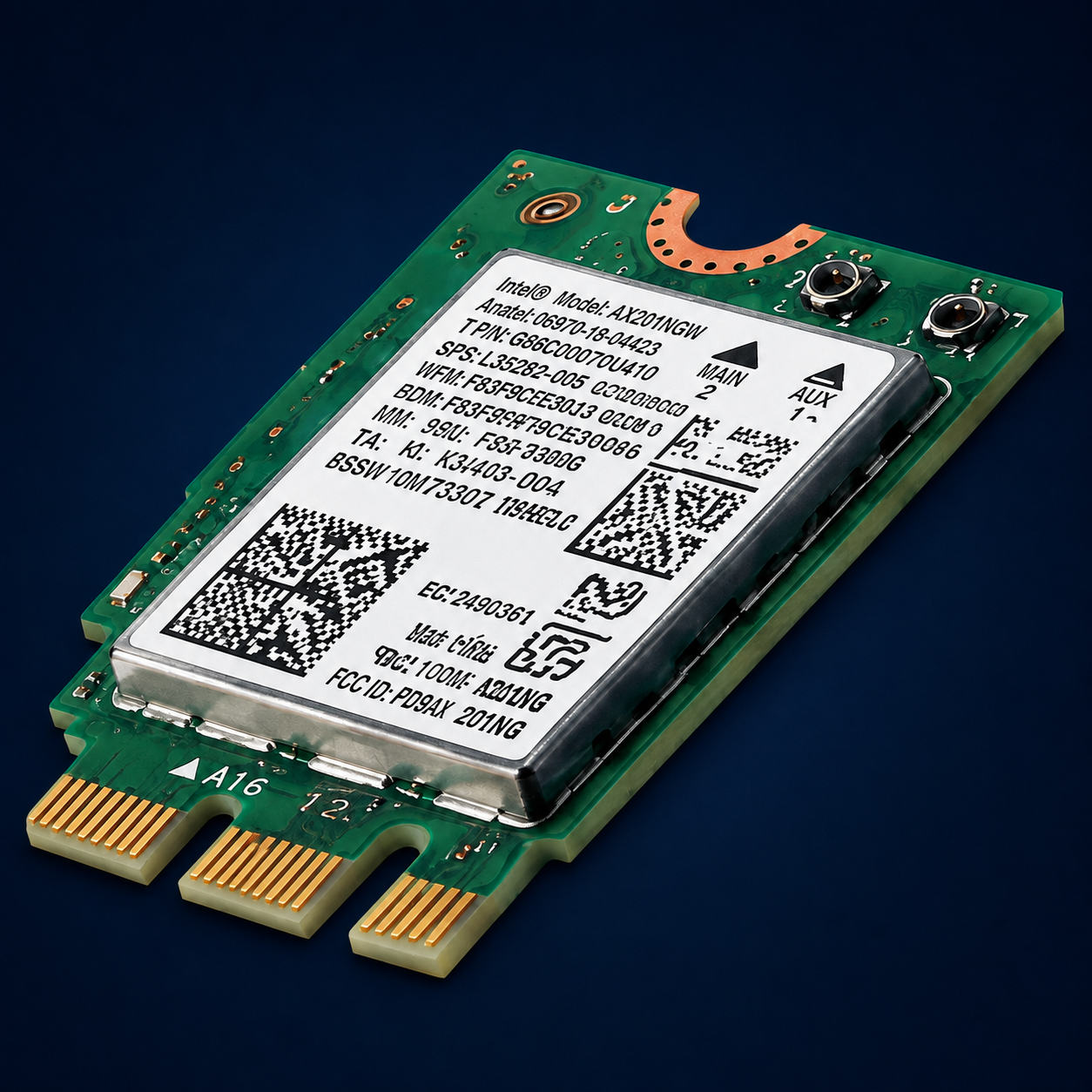
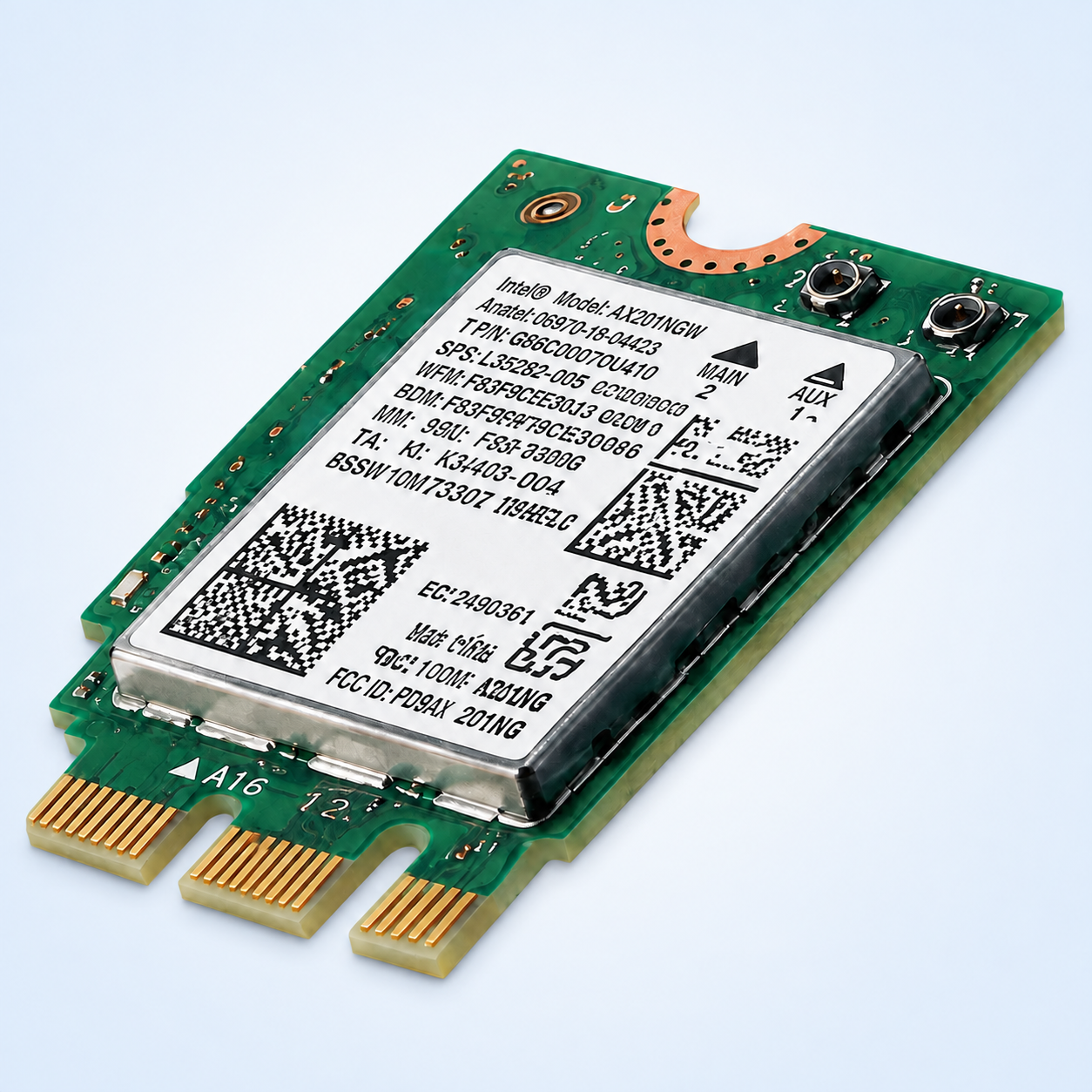
Driver device hardware illustrationDriver device hardware illustration
DEVICE + PACKAGE INTELLIGENCE

Logitech - MEDIA - 10/22/2012 12:00:00 AM - 13.80.853.0

Logitech · audio
Verified packageValidWHQL: yes
ManufacturerLogitechHardware IDharvest:logitech - media - 10/22/2012 12:00:00 am -Device classaudioArchitectureAMD64
OBSERVED DRIVER
13.80.853.0
Released 2012-10-21
5.43 MB package
View Official Catalog RecordGet ASR Driver Update Tool(Certification planned)

Driver overview

Logitech MEDIA driver update released in October 2012

VendorLogitech
Device categoryaudio
Driver version13.80.853.0
Release date2012-10-21
Device identity
Hardware IDharvest:logitech - media - 10/22/2012 12:00:00 am -
Device classaudio
Update ID9c2445a9-5e8a-469d-97a1-38bf41109445
Supported environment
ArchitectureAMD64
ClassificationDrivers (Sound)
RestartCan request restart
Package and signature evidence
INF namelPRO564c.inf
INF providerLogitech
SignatureValid
WHQLyes
Package size5.43 MB
File count24
Architecture mixx64:8,x86:6
Update Catalog ID9c2445a9-5e8a-469d-97a1-38bf41109445

Signer

CN=Microsoft Windows Hardware Compatibility Publisher, OU=MOPR, O=Microsoft Corporation, L=Redmond, S=Washington, C=US

SHA-256

0ae4c3c7821c5bf025a99e01067d3e93b557034aa68ee62fc8a14a790b7ec30b
Evidence boundary: This report describes the exact catalog/package record supplied in the WinLab evidence dataset. Missing fields are explicitly marked and are never inferred.
Applicable Windows products

Windows 8, Windows 8.1 and later drivers

Microsoft driver documentation

Publisher support path

Ways to check and update this driver safely

Manually check for the correct driver

Use the exact hardware ID and supported Windows product shown in this report. Start with Windows Update, the Microsoft Update Catalog record, or the device manufacturer.

  1. Create a restore point.
  2. Confirm the device and architecture match.
  3. Review the publisher and signature.
  4. Install only the applicable official package.
Open Microsoft Update Catalog

Automatically scan for related Windows problems

Advanced System Repair can scan Windows for damaged components, registry references, services, performance problems, and driver-related issues that may affect device operation.

The scan does not guarantee that this exact catalog driver is required; always match the hardware ID before installing a package.

Get Advanced System RepairOptional paid software offer from Advanced System Repair, Inc. Purchase is not required to use the manual driver guidance above.
Step-by-step: identify and update Logitech - MEDIA - 10/22/2012 12:00:00 AM - 13.80.853.0 safely

These illustrated Windows screens are personalized with the observed fields from this driver record. Menu wording can vary by Windows version and device class.

1

Locate the device in Device Manager

Open Device Manager, expand audio, and select Logitech - MEDIA - 10/22/2012 12:00:00 AM - 13.80.853.0. Do not choose a similarly named device.

2

Compare the installed Driver tab

Open Properties → Driver and compare the provider, date, version, and signer. A version number alone is not enough to establish compatibility.

3

Confirm the hardware ID and choose a trusted source

On the Details tab, select Hardware Ids and match harvest:logitech - media - 10/22/2012 12:00:00 am -. Then use an official source appropriate for the device.

4

Check Windows Update for an applicable driver

  1. Open Settings.
  2. On Windows 11, choose Windows Update. On Windows 10, choose Update & Security → Windows Update.
  3. Select Check for updates.
  4. When available, review Advanced options → Optional updates → Driver updates.
  5. Install only an applicable update and restart only if Windows requests it.
5

Verify the result and recover safely

After updating

Test the device, check Device Manager for warning symbols, and confirm the installed version only if an update was applied.

If the device works worse

Open Properties → Driver → Roll Back Driver when available. Otherwise use the restore point or reinstall the previous official package.

Stop when the device works correctly. A numerically newer driver is not automatically better for every computer or Windows build.
How to update your drivers automatically with Advanced System Repair
Optional paid software workflow. Review the scan results and create a restore point before applying driver changes. Availability and detected results vary by computer.
1

Download and install Advanced System Repair

Download Advanced System Repair from the official checkout, complete the installation, and open the application.

Download Advanced System Repair
2

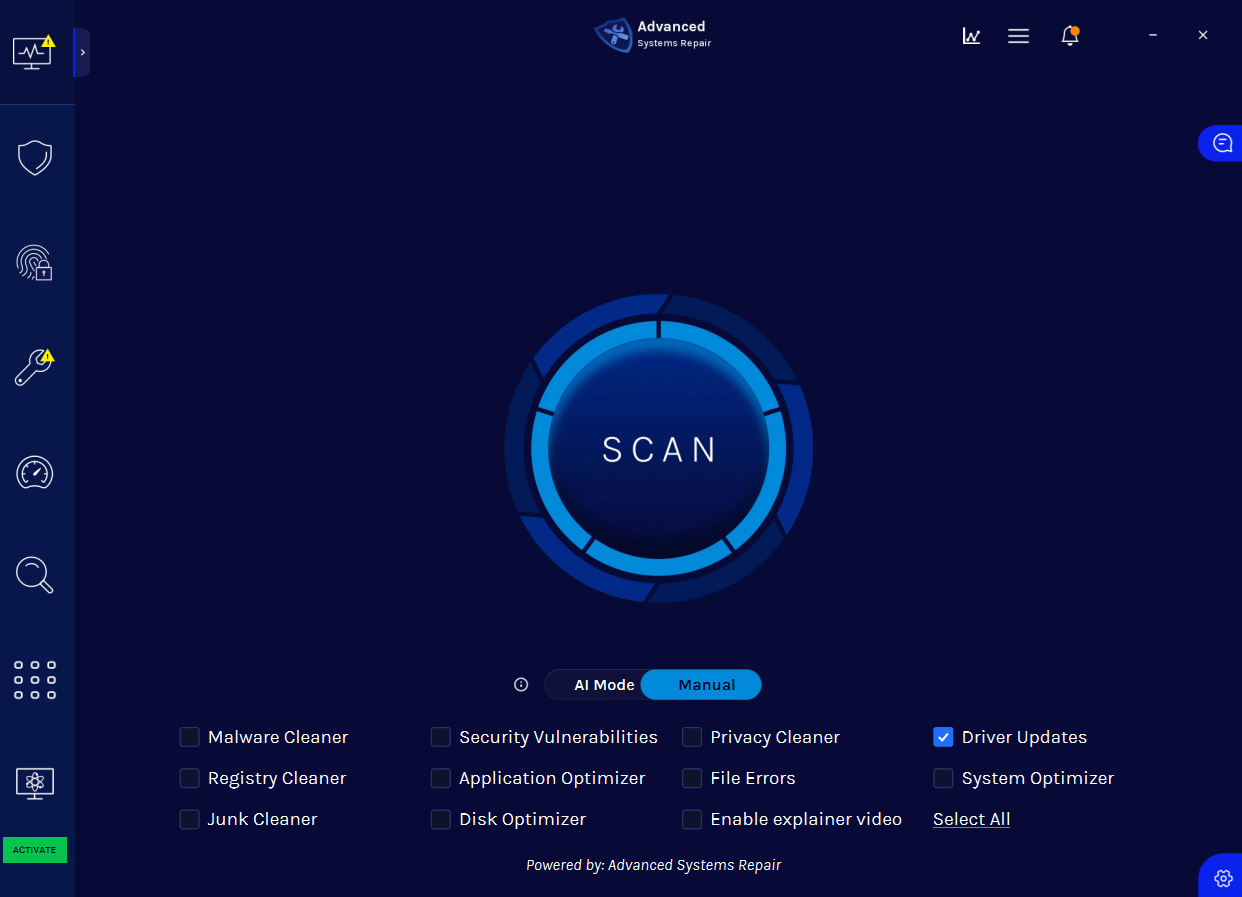
Start a Driver Updates scan

Select Driver Updates, then click the large SCAN button to begin checking the computer.

Advanced System Repair start scan screen with Driver Updates selected
3

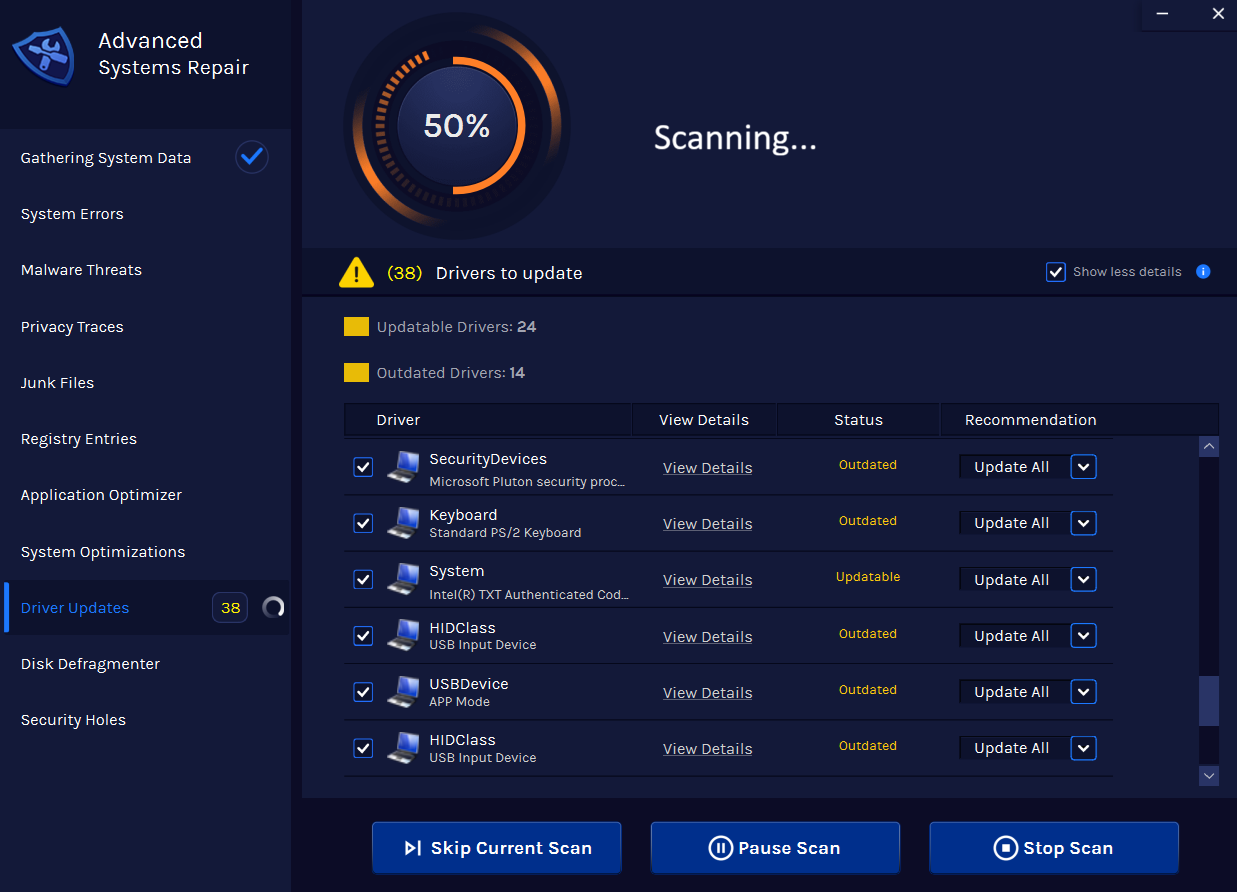
Let ASR scan for outdated and updateable drivers

Keep the application open while it gathers system data and checks driver status. The number and type of results will vary by computer.

Advanced System Repair scanning the system for driver updates
4

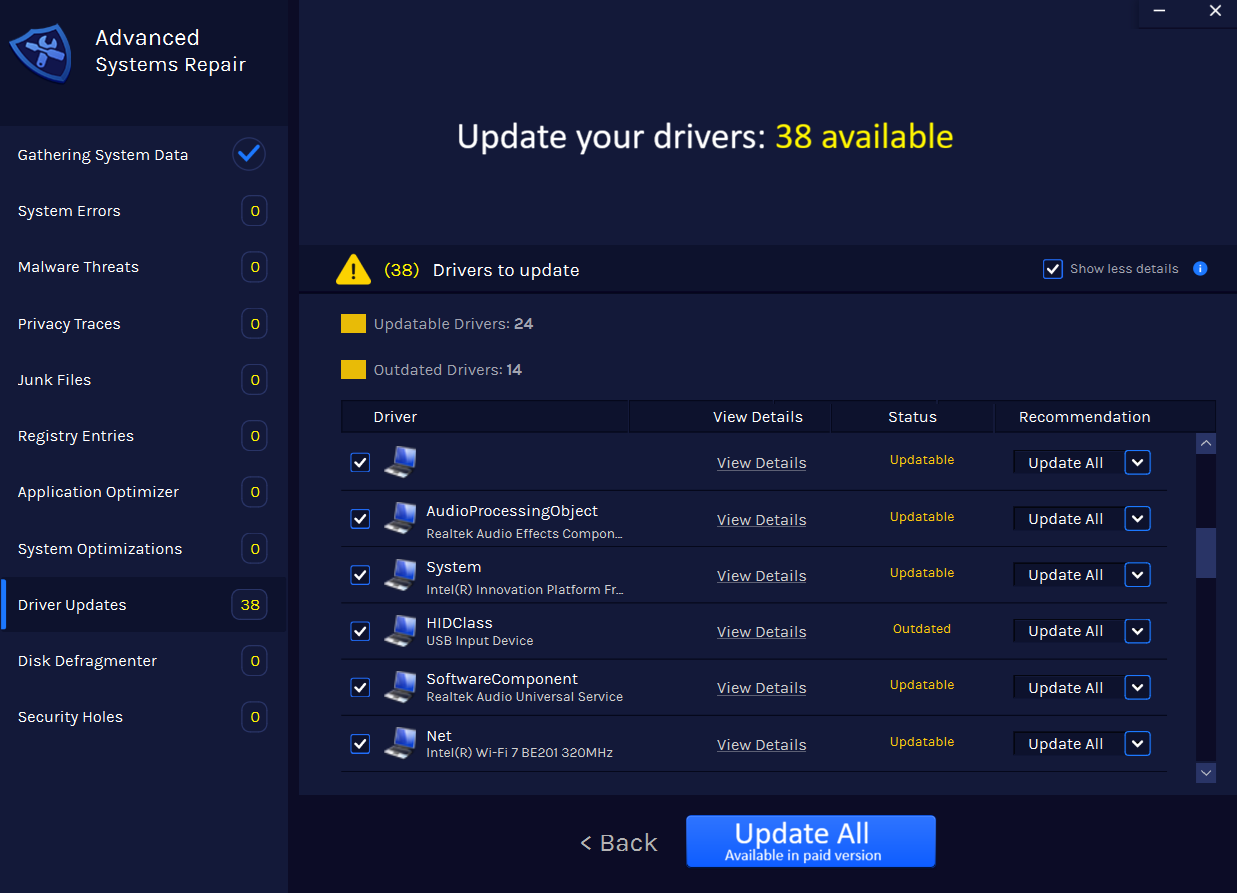
Review the results and choose Update All

Confirm that the detected device and proposed driver match before selecting Update All. The paid version may be required to apply all updates.

Advanced System Repair driver update results with Update All buttonLogitech - MEDIA - 10/2...Audio driver · 13.80.853.0
Get Advanced System Repair